

Create bandwidth profiles
Define reusable per-device download and upload limits and verify them at the edge.
A bandwidth profile is only a reusable rate limit. It does not grant access, select a network, or describe a price or duration.
Bandwidth profile → Service class → Allow policy → Edge enforcement1. Create the profile
Select the business, open Network → Traffic & bandwidth → Bandwidth, then select New profile.
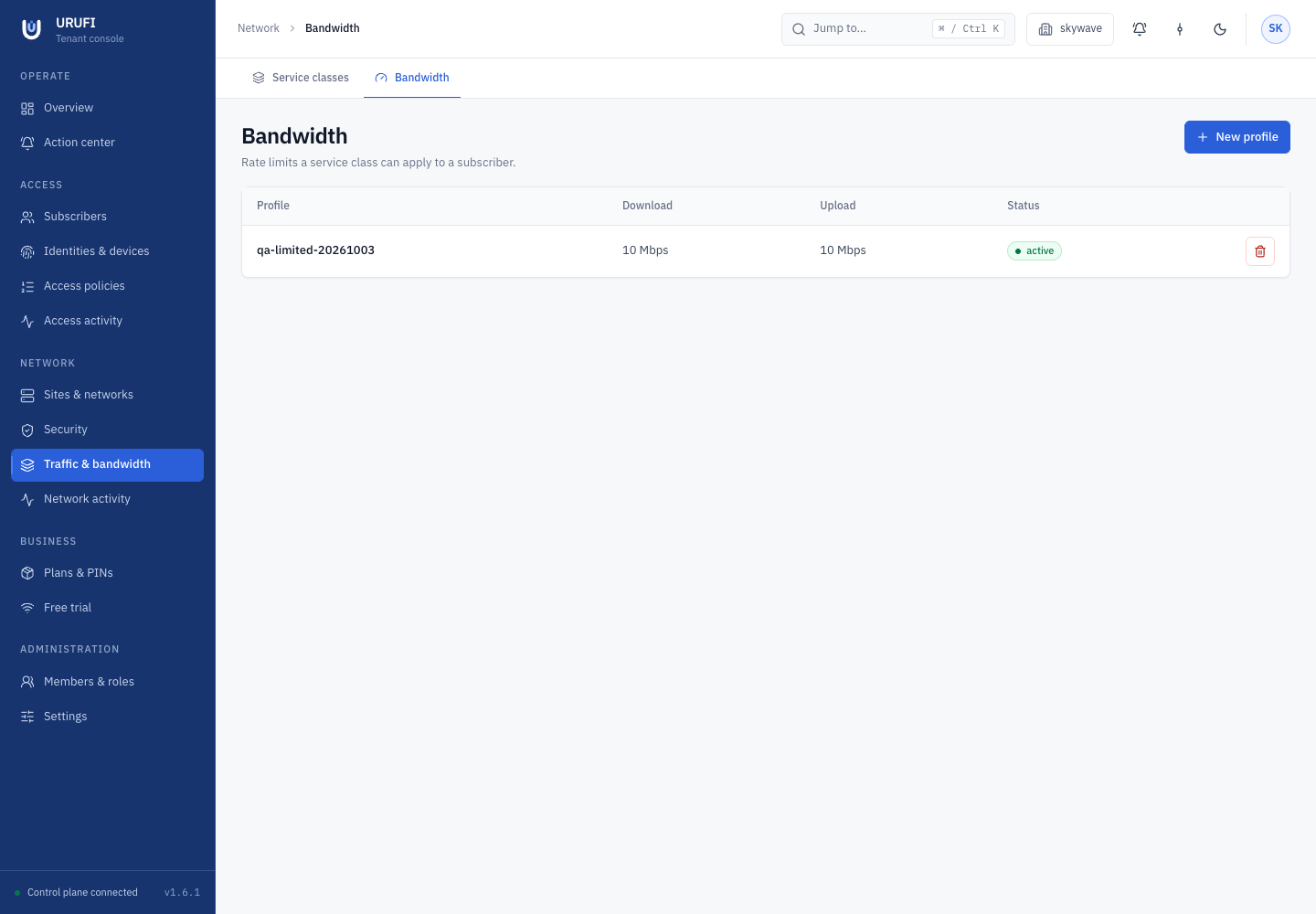
| Field | Meaning |
|---|---|
| Name | A clear technical purpose, such as Guest 10 Mbps |
| Download (Kbps) | Maximum traffic delivered to one authorized device |
| Upload (Kbps) | Maximum traffic sent by that device |
| Available | Whether the profile can be selected in a service class |
Rates use decimal kilobits per second: 2000 is 2 Mbps, 10000 is 10 Mbps, and
50000 is 50 Mbps. Leave one direction blank to keep that direction unlimited. At least
one direction must have a limit.
2. Connect it to access policy
The profile has no effect until it is selected by a service class and that class is returned by an allow policy:
- Open Network → Traffic & bandwidth → Service classes.
- Create or edit a class and select the bandwidth profile.
- Open Access → Access policies.
- Create or edit an Allow rule and select that service class.
- Put the policy in the correct first-match order.
There is no separate traffic-shaping switch under site services. Shaping follows the effective bandwidth policy and is delivered to the Edge Agent with the current access state.
3. Verify the result
Connect a client that matches the allow policy. In Access → Access activity, confirm the expected policy and service class, and make sure delivery says Applied by edge.
Use a sustained transfer or iperf3 rather than only a short browser test. On the Edge
Agent, identify the client's active interface and inspect traffic control:
sudo tc -j -details class show dev ufv100 | python3 -m json.tool
sudo tc -s class show dev ufv100
sudo tc -s qdisc show dev ufv100
sudo tc -s qdisc show
Replace ufv100 with the real native or managed VLAN interface. Kernel JSON reports
bytes per second, so a 5000 Kbps limit appears near 625000 bytes per second.
URUFI applies per-device download shaping on the client interface and uses IFB for upload shaping. The change participates in the network transaction; a failed apply does not replace the previous last known good revision.
A limit is a ceiling
A 5 Mbps profile prevents a device from exceeding roughly 5 Mbps. It cannot provide 5 Mbps when the WAN, WiFi link, gateway, test server, or VM path is slower.
Change or remove a profile
Turn Available off to stop new service classes from selecting the profile while preserving existing references. If you delete it, service classes using it fall back to unshaped traffic on the next apply. Review those classes and policies before confirming deletion.
Troubleshooting
| Symptom | Check |
|---|---|
| No shaped class appears | Matched policy, selected service class, attached profile, delivery status, and network convergence |
shaper_qdisc_conflict | Another manager owns the interface's root qdisc; keep one traffic-control owner |
| Download works but upload does not | IFB support and the URUFI-created uifb... device |
| An active client keeps an old rate | Current access decision and service-class delivery, not only the edited profile |
| Browser result is lower than the limit | Sustained kernel counters or iperf3 before changing the profile |