

Enable edge services
Turn on the local services a site needs and verify that they started safely.
An enrolled Edge Agent does not run every packet service automatically. Service controls are per site, while LAN, WAN, port mode, native addressing, and allowed VLANs remain local safety settings on the gateway.
Before you begin
Confirm that the site is Online, the reported LAN and WAN interfaces are correct, and the WAN has internet access and a default route. If the topology is wrong, run:
sudo urufi-agent initial
sudo systemctl restart urufi-agent
Do not enable DHCP while another DHCP server is active on the same client segment.
1. Open the service controls
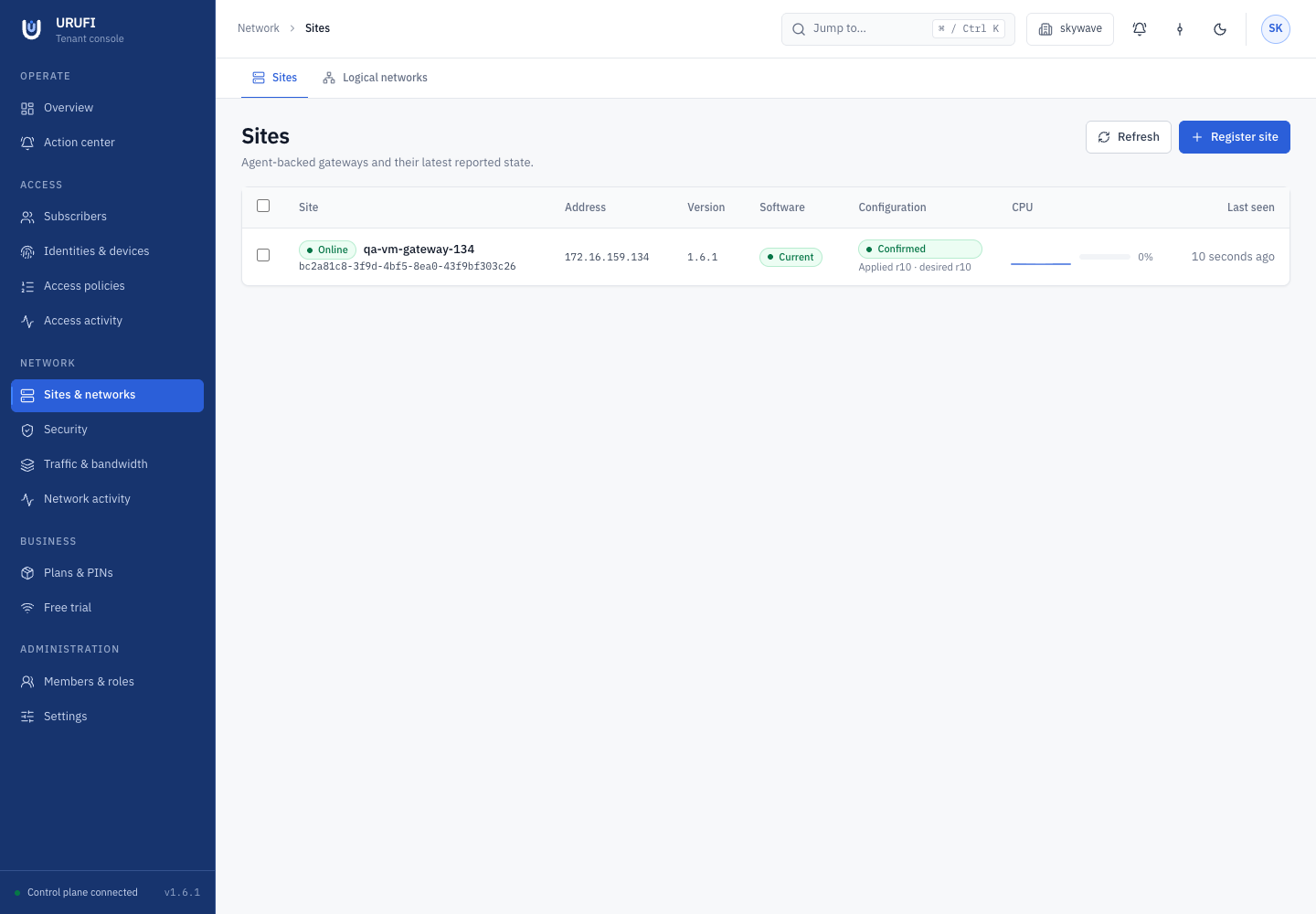
In the Console, select the business, then open Network → Sites & networks. Select the site and open its Services tab.
2. Choose only what the site needs
| Service | Enable it when | Dependency |
|---|---|---|
| DHCP | URUFI should assign addresses on one or more managed networks | Enable it separately; make sure no competing server exists |
| Hotspot | A network uses captive access | Turning it on also turns on Firewall |
| Firewall | The gateway should enforce authorization, NAT, walled garden, or operator rules | Turning it off also turns off Hotspot |
| EAP-TLS | The site provides WPA2/WPA3-Enterprise certificate access | RADIUS follows this switch automatically |
| Metrics | Operators need gateway health and interface telemetry | Independent from packet services |
Traffic shaping has no separate switch. It follows the bandwidth profile selected through service class and access policy.
3. Apply in a safe order
For a captive site:
- Enable Metrics and select Apply services.
- Create and activate the network, including its DHCP pool.
- Configure Network → Security → Captive portal and the required walled-garden entries.
- Enable DHCP, Firewall, and Hotspot, then apply the services.
- Add bandwidth only after the base access flow works.
For an authorized-only network, enable DHCP when URUFI owns address allocation and enable Firewall for access enforcement. Leave Hotspot off. For a secure enterprise SSID, enable EAP-TLS after the certificate authority, SSID, and access-point RADIUS client are configured under Network → Security → RADIUS & EAP.
4. Verify local effect
On the gateway, check the process and recent logs:
sudo systemctl is-active urufi-agent
sudo journalctl -u urufi-agent -n 100 --no-pager
Then open Network → Sites & networks → Logical networks, select the same site, and confirm its active network profile reaches Confirmed. A saved switch is desired state; the agent logs and convergence status confirm that the service is running locally.
Treat DHCP as a cutover
Two DHCP servers on one broadcast domain can give clients conflicting gateways. Disable the old server before attaching production clients, then renew one test client's lease.