

Authorize access with policies
Build ordered rules that decide who is allowed, which service class applies, and when access expires.
Access policy is the authority for network admission. It evaluates the identity, device, authentication method, network, and optional commercial entitlement, then returns either Deny or Allow with an optional service class and session limit.
Rules are evaluated from top to bottom. The first matching rule wins. If no rule matches, URUFI denies access.
Before you create a policy
Select the business you want to operate, then prepare only the objects your rule needs:
- create a human or guest identity in Access → Identities & devices;
- register or observe the device on the Devices tab of Access → Identities & devices;
- create and activate the receiving network in Network → Sites & networks → Logical networks;
- optionally create a service class for bandwidth or firewall treatment;
- optionally create a commercial plan for paid, PIN, or trial access.
An enterprise user, staff device, or IoT device does not need a commercial plan. Leave the plan condition empty unless entitlement is truly part of the decision.
1. Create the rule
Open Access → Access policies, then select New policy.
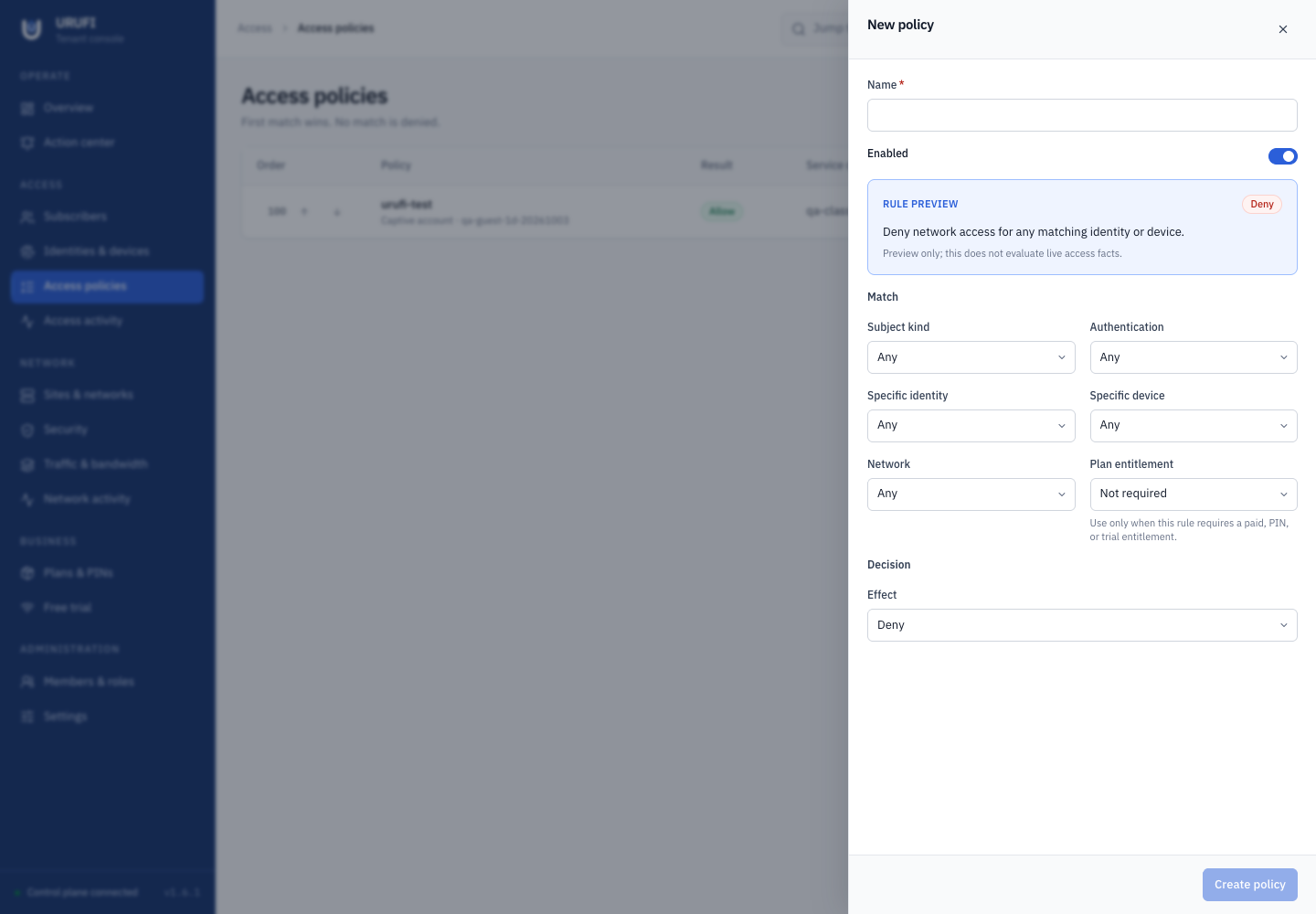
Give the rule a name that states its purpose, such as Allow staff on secure WiFi.
Leave Enabled on when the rule is ready to participate in evaluation.
Use the conditions to make the rule as narrow as necessary:
| Condition | Use it for |
|---|---|
| Subject kind | Any, Human, Device, or Guest |
| Authentication | Any, EAP-TLS, or Captive account |
| Specific identity | One known identity; otherwise leave Any |
| Specific device | One known device; otherwise leave Any |
| Network | One receiving network; otherwise match every network |
| Plan entitlement | A required paid, PIN, or trial entitlement; otherwise leave Not required |
Every populated condition must match. Empty conditions mean “any,” so review broad rules carefully before enabling them.
Subscribers who sign in through the captive portal are Human identities. Guest is a kind you create yourself under Access → Identities & devices. Phone verification during portal sign-up is not a separate authentication method; portal sign-in is Captive account.
2. Choose the result
Select Deny to reject a matching request. Select Allow to grant access, then set:
- Service class to the technical treatment the client should receive, or No shaping when no class is needed;
- Maximum session (hours) only when the policy needs a fallback lifetime and the authentication or entitlement does not already provide an earlier expiry.
The effective access expiry is the earliest applicable boundary. A policy session limit cannot extend an expired credential or commercial entitlement.
3. Put rules in the correct order
New rules appear at the top. Use the arrow controls on Access → Access policies to reorder them.
Place specific exceptions before broad rules. A practical order is:
- explicit deny rules for blocked identities or devices;
- specific staff, managed-device, or IoT rules;
- paid, PIN, or trial guest rules;
- broader fallback rules.
You do not need a final catch-all deny rule because no match already means deny.
Common policy patterns
Staff on secure WiFi
Match Human, EAP-TLS, and the secure network. Leave Plan entitlement as Not required, allow access, and select the staff service class.
Portal subscribers are also human identities, and a plan can include certificate access. When subscribers can use certificates on the same network, do not rely on Human and EAP-TLS alone: give staff their own network, or match their specific identities. Otherwise a subscriber whose plan has expired can still match the staff rule.
Managed IoT device
Match Device and, when possible, one Specific device. Select its network, leave the commercial plan empty, allow access, and apply an IoT service class with narrow firewall permissions.
PIN card subscriber
Match Captive account, the captive network, and the commercial plan sold on the PIN cards. Leave Subject kind as Any or Human. Allow access and select the guest service class. The plan expiry remains an authorization boundary.
Free-trial subscriber
Match Captive account and the plan selected under Business → Free trial. Leave Subject kind, Specific identity, Specific device, and Network as Any. The portal offers the trial only while the plan is active and includes portal access, and such an enabled allow rule selects an available service class with a bandwidth limit. Add a maximum session only if the deployment needs a shorter limit than the plan duration.
4. Verify the decision
Use a real client on the intended network, then open Access → Access activity.
Check:
- the identity, device, authentication method, and network are the expected ones;
- the intended policy is shown as the matched policy;
- the result is allow or deny as designed;
- the service class and expiry are correct;
- delivery says Applied by edge.
Use the Devices tab of Access → Identities & devices to inspect the device's current access and authentication bindings. For an allow rule, also test the assigned bandwidth and firewall behavior. For a deny rule, prove that a nearby allowed case still works.
Change policy safely
Editing, disabling, reordering, or deleting a policy can recompute current access. When testing a replacement, disable the old rule first, confirm the new decision in Access activity, then delete obsolete policy only after the result is stable.
Deleting a commercial plan is not the same as deleting an identity. An expired plan no longer satisfies a plan condition, while the identity and device can still match another policy. Disabling a plan stops new issuance; existing activations retain their recorded expiry.
Troubleshooting
| Symptom | Check |
|---|---|
| No policy matched — default deny | Rule order, Enabled state, subject kind, authentication, network, and plan condition |
| The wrong rule matched | A broader rule is above the intended specific rule |
| Allowed centrally but no client access | Delivery status, site connection, network convergence, and the client's current address |
| Correct access but wrong rate or filtering | Selected service class, bandwidth profile, and class-scoped firewall rules |
| Access ended earlier than expected | Credential expiry, entitlement expiry, and maximum session; the earliest value wins |
Next, compose a service class when allowed clients need a reusable bandwidth or firewall treatment.